
Skip to content

⚙️ System Configuration

Panduan optimasi sistem macOS untuk performa maksimal dan user experience yang lebih baik.

1. System Update

Pastikan macOS sudah up-to-date:

bash
softwareupdate -l
softwareupdate -i -a

2. Disable Animations

Hapus animasi untuk performa lebih baik dan kecepatan:

bash
# Disable Launchpad animation
defaults write com.apple.dock springboard-show-duration -int 0
defaults write com.apple.dock springboard-hide-duration -int 0

# Disable Mission Control animation
defaults write com.apple.dock expose-animation-duration -float 0

# Disable window open/close animation
defaults write NSGlobalDomain NSAutomaticWindowAnimationsEnabled -bool false

# Disable dock hiding animation
defaults write com.apple.dock autohide-time-modifier -float 0

# Restart Dock
killall Dock

3. Disable Spotlight Suggestions

bash
defaults write com.apple.lookup.shared LookupSuggestionsDisabled 1

4. Finder Settings

Show Hidden Files

bash
defaults write com.apple.finder AppleShowAllFiles -bool true
killall Finder

Show Status Bar

bash
defaults write com.apple.finder ShowStatusBar -bool true
killall Finder

Show Full Path in Finder Title

bash
defaults write com.apple.finder _FXShowPosixPathInTitle -bool true
killall Finder

Enable Spring Loading for Directories

bash
defaults write NSGlobalDomain com.apple.springing.enabled -bool true
defaults write NSGlobalDomain com.apple.springing.delay -float 0

View Options (List View)

Buka Finder, tekan ⌘J (Show View Options). View Options
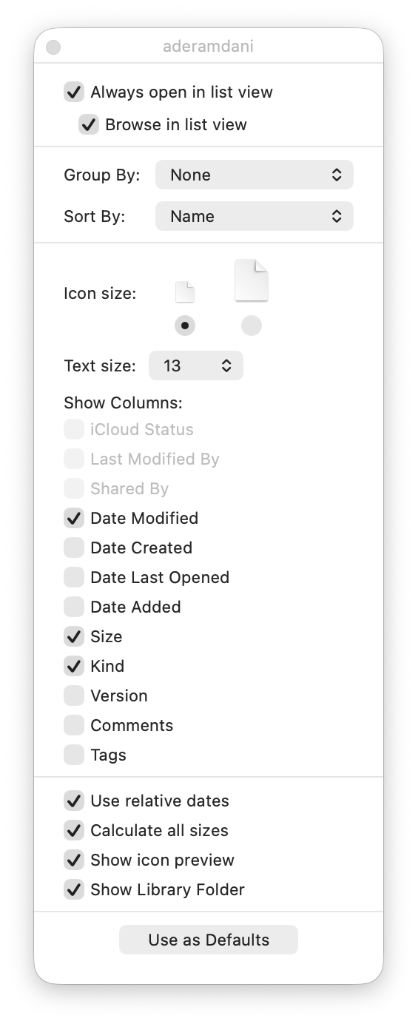
bash
# Use list view in all Finder windows by default
# Four-letter codes for the other view modes: `icnv`, `clmv`, `Flwv`
defaults write com.apple.finder FXPreferredViewStyle -string "Nlsv"

5. Trackpad & Mouse Optimization

Three Finger Drag

System SettingsAccessibilityPointer ControlTrackpad Options...Dragging style: Three Finger Drag

bash
# Faster trackpad
defaults write -g com.apple.trackpad.scaling -float 5

# Trackpad: enable tap to click
defaults write com.apple.AppleMultitouchTrackpad Clicking -bool true

# Increase mouse speed
defaults write -g com.apple.mouse.scaling -float 2.5

6. Keyboard Settings

Configure keyboard untuk development yang optimal:

  • System Preferences → Keyboard → Key Repeat: Fast
  • System Preferences → Keyboard → Delay Until Repeat: Short
  • System Preferences → Keyboard → Caps Lock: Remap to Control/Escape
bash
# Disable press-and-hold for keys in favor of key repeat
defaults write NSGlobalDomain ApplePressAndHoldEnabled -bool false

7. Desktop & Dock Settings

Konfigurasi berikut disesuaikan untuk produktivitas dengan tampilan minimalis.

Dock

  • Size: Small (sekitar 32px)
  • Magnification: Off
  • Position: Bottom
  • Minimize window animation: Scale Effect
  • Double-click action: Zoom
  • Minimize windows into application icon: ✅ On
  • Automatically hide and show the Dock: ✅ On
  • Animate opening applications: ❌ Off
  • Show indicators for open applications: ✅ On
  • Show suggested and recent apps in Dock: ❌ Off

Desktop & Stage Manager

  • Show items:
    • [x] On Desktop
    • [ ] In Stage Manager
  • Click wallpaper to show desktop: Only in Stage Manager
  • Stage Manager: ❌ Off
  • Widgets:
    • Show Widgets: [ ] On Desktop [ ] In Stage Manager (Off/Hidden)
    • iPhone Widgets: ❌ Off

Windows

  • Prefer tabs when opening documents: In Full Screen
  • Close windows when quitting an application: ✅ On
  • Drag windows to left or right edge of screen to tile: ✅ On
  • Drag windows to menu bar to fill screen: ✅ On
  • Hold ⌥ key while dragging windows to tile: ✅ On
  • Tiled windows have margins: ❌ Off

Mission Control

  • Automatically rearrange Spaces based on most recent use: ✅ On
  • When switching to an application, switch to a Space with open windows for the application: ✅ On
  • Group windows by application: ✅ On
  • Displays have separate Spaces: ✅ On
  • Drag windows to top of screen to enter Mission Control: ✅ On

Command Line Setup

bash
# Auto-hide Dock
defaults write com.apple.dock autohide -bool true

# Faster Dock show/hide
defaults write com.apple.dock autohide-delay -float 0
defaults write com.apple.dock autohide-time-modifier -float 0

# Smaller icon size
defaults write com.apple.dock tilesize -int 32

# Remove recent apps from Dock
defaults write com.apple.dock show-recents -bool false

# Disable "Animate opening applications"
defaults write com.apple.dock launchanim -bool false

# Enable "Minimize windows into application icon"
defaults write com.apple.dock minimize-to-application -bool true

# Restart Dock
killall Dock

8. Control Center & Menu Bar

Modules

  • Wi-Fi: Show in Menu Bar
  • Bluetooth: Show in Menu Bar
  • AirDrop: Show in Menu Bar
  • Sound: Always Show in Menu Bar
  • Battery: Show Percentage
  • Clock: Digital, Show Date, Show seconds

Other Modules

  • Splitlight: Don't show in Menu Bar (gunakan ⌘ + Space)
  • Siri: Don't show in Menu Bar

9. Safari Optimization

bash
# Show full URL in address bar
defaults write com.apple.Safari ShowFullURLInSmartSearchField -bool true

# Enable Debug menu
defaults write com.apple.Safari IncludeInternalDebugMenu -bool true

# Disable auto-opening safe files
defaults write com.apple.Safari AutoOpenSafeDownloads -bool false

10. Activity Monitor

Monitor sistem resources:

bash
open /Applications/Utilities/Activity\ Monitor.app

11. Storage Management

Check Storage Usage

bash
df -h
du -sh ~/.*

Clean Cache

bash
# Safari cache
rm -rf ~/Library/Safari/History.db

# Temporary files
rm -rf ~/Library/Caches/*

# Log files
rm -rf ~/Library/Logs/*

12. Security Settings

Enable FileVault

  • System Preferences → Security & Privacy → FileVault
  • Click "Turn On FileVault"

Firewall

bash
# Enable firewall
sudo defaults write /Library/Preferences/com.apple.alf globalstate -int 1

Disable Spotlight Indexing (Optional)

bash
sudo mdutil -a -i off

13. Energy Settings

Optimize battery life untuk laptop:

  • System Preferences → Battery → Energy Saver
  • Enable "Put hard disks to sleep when possible"
  • Enable "Slightly dim the display while on battery power"

14. iCloud Sync Settings

  • System Preferences → iCloud
  • Pilih items untuk sync
  • Disable "Optimize Mac Storage" jika ingin keep files locally

15. Time Machine Backup

Setup automatic backup:

bash
# Enable Time Machine
defaults write /Library/Preferences/com.apple.TimeMachine.plist AutoBackup -bool true

# Set backup interval (600 seconds = 10 minutes)
defaults write /Library/Preferences/com.apple.TimeMachine.plist BackupInterval -int 600

Manual backup:

bash
tmutil startbackup

16. Notification Settings

  • System Preferences → Notifications
  • Disable notifications dari apps yang tidak perlu
  • Enable "Do Not Disturb" scheduling

Dirilis di bawah lisensi MIT.